Bulin 47 tutorial - Make your dance video
Follow this Bulin 47 tutorial to turn a photo into an AI dance video. Check photo requirements, choose a template, generate, preview and download your result.
This Bulin 47 tutorial walks you through making a dance video from one photo. You supply the person; the selected reference video supplies the movement, camera and scene. Start with a clear portrait, choose an available duration, then generate and review the result before downloading it.
Keep the Bulin 47 AI video generator open while following the instructions. This Bulin 47 AI video tutorial describes the controls available on the site, including what to do when a duration is disabled or a previous request is still running.
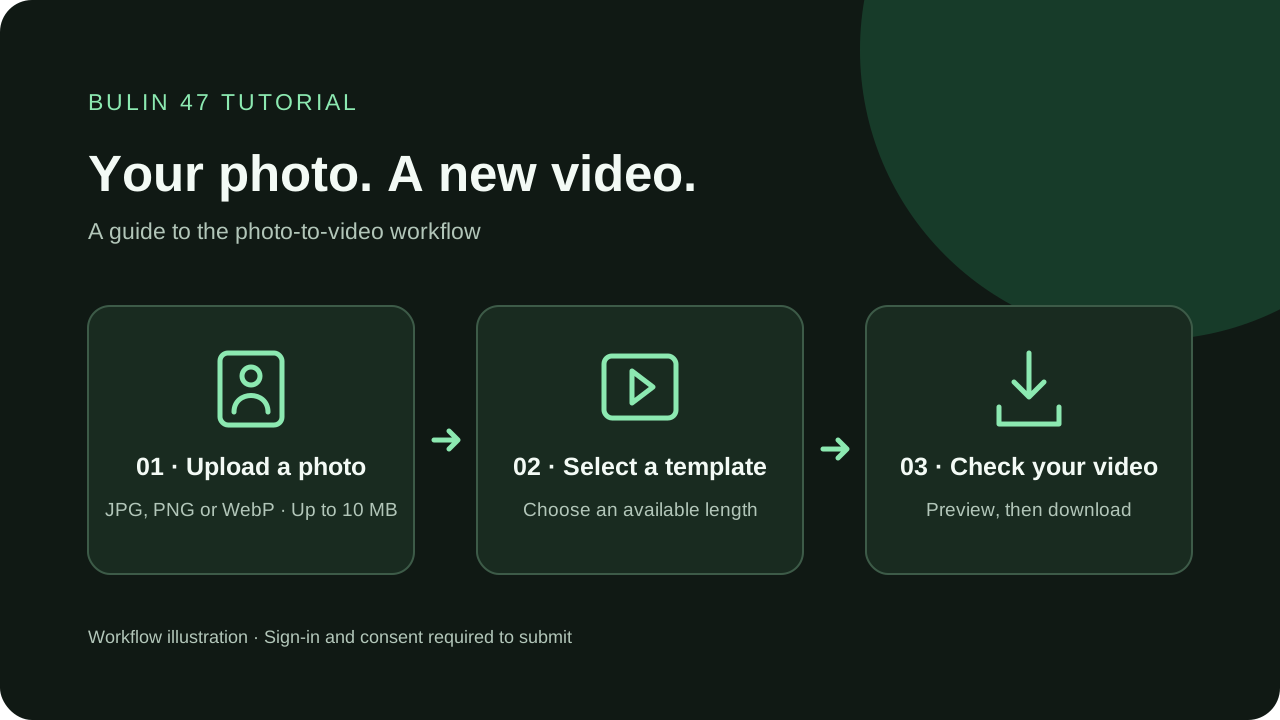
The diagram illustrates the workflow. It does not show an actual generated result.
Before you start this Bulin 47 tutorial
Prepare one JPG, PNG or WebP image no larger than 10 MB. The photo should show one person facing the camera, with their face and upper body visible. Check the original file on your device so that you can distinguish a damaged image from an upload problem.
You also need to sign in and accept the consent statement. It requires your own photo or permission from the person pictured, who must be at least 18 and must not be a celebrity or public figure. Read the photo privacy information before submitting an image. Selecting a photo creates a local preview; submission sends it to the video service.
The reference clips on the homepage belong to their credited TikTok creators. They were not generated by this site. Treat them as references for the trend, not evidence that every portrait will produce the same result. This Bulin 47 tutorial does not promise an exact likeness or identical output quality.
Choose and check your photo
Select Upload a photo, or drag an image into the upload area. Wait for its preview to appear. A filename alone is not enough: the page must be able to open the image before you can submit it.
For this Bulin 47 tutorial, use the preview to check three things:
- The intended person is clearly visible, without other faces competing for attention.
- Their face and upper body are in the frame, rather than cropped away.
- The picture is sharp enough to inspect, without a strong filter hiding facial details.
These are practical selection tips, not guarantees of a particular result. To replace the picture, select Change photo or remove it and choose another file. Finish choosing before starting generation, because the photo controls are disabled while a request is running.
How to make a Bulin 47 AI video
Learning how to make Bulin 47 AI video clips with this tool comes down to the following sequence. There is no prompt box to fill in: your photo and the selected template are the inputs.
- Choose an enabled duration. The interface lists 6, 12 and 19 seconds. Longer templates are selectable only when they are available. A dimmed option cannot be used; choose an enabled one instead.
- Read and accept consent. Confirm that the person and photo meet the statement beside the checkbox. This Bulin 47 tutorial uses the same requirements as the form.
- Sign in if prompted. Use Sign in to continue, complete the account flow, then check the photo preview, duration and consent again. If returning to the page clears a selection, restore it before submitting.
- Select Generate video. Keep the page open while the status indicates that your video is being created. The page checks for completion; there is no fixed waiting time promised by the interface.
- Watch for a recovered request. If the page says a previous request was recovered, wait for that request to finish. It is not confirmation that a new video using your newly selected photo has started.
You do not need to upload a dance recording to follow this Bulin 47 tutorial. The generator uses its configured reference clip. Choosing a duration selects an available template; it does not let you trim a personal video or invent different choreography.
Preview and download your dance
When generation succeeds, a Your video section appears below the generator. Play the entire clip before saving it. Inspect the face during turns, the hands during movement and the edges of clothing against the background. Judge the actual result rather than the reference previews above it.
The preview starts muted, so use the player controls if you want to check any sound in the returned file. There is no music selection or audio generation step in this Bulin 47 tutorial. The available controls also do not provide an editor for repairing individual frames.
Select Download video to access the returned file. Depending on your browser and the file host, it may open in another tab; use the browser's save option if necessary. Confirm that the saved video plays on your device before closing the result page.
A Bulin 47 AI dance result can vary with the portrait and reference clip. Keep that limitation in mind when following any Bulin 47 tutorial: the controls guide a generation request, but they do not guarantee perfectly preserved facial details or motion.
Fix upload and generation problems
If this Bulin 47 tutorial stops at the upload step, check the displayed error first. For an unsupported format, export the image as JPG, PNG or WebP. For an oversized file, reduce it below the limit. If it cannot be opened, try a different image that displays correctly on your device.
If the button remains unavailable, check the photo preview, consent box and enabled duration. Allow the generator to finish loading. A service unavailable message means generation cannot start yet; changing your photo will not connect the service.
Use Try again when the page offers it for loading options or checking a task. If a message says the video request could not be confirmed, do not keep submitting replacements. The service may already have accepted the request. Contact support about the request with the displayed error and when it happened; you do not need to send another portrait to explain the issue.
Bulin 47 tutorial questions
Can I use a different dance video?
The current form accepts a photo and an available template duration. It does not accept your own reference video, a text prompt or an audio track. Follow this Bulin 47 tutorial for the supported reference workflow.
Does this Bulin 47 tutorial require CapCut?
No. The steps use the website's generator and download link. There is no CapCut template to open or editing project to import. Any editing you do after downloading is a separate workflow.
Can I generate before signing in?
You can inspect the public reference clips and prepare your photo, but submitting a generation requires signing in and accepting consent. A selected preview does not mean generation has started.
Return to the generator with your prepared photo when you are ready. You can also find this Bulin 47 tutorial in the blog's tutorial listing if you need the steps again.